Getting Started
Prerequisites
Before accessing the MlAngles MLOps Platform, the following prerequisites must be fulfilled:
Licensing and Provisioning
Before accessing the MlAngles LLMOps Platform, the following licensing requirements must be fulfilled:
- User Licenses: A valid license for the desired number of users.
- Business Units: License must cover the designated business units.
- Selected Modules: License must explicitly include the required LLMOps modules (e.g., Model Fine Tuning, Monitoring).
- Subscription Duration: Access is granted for the agreed subscription term (e.g., 30 / 60 / 90 days).
Once licensing is confirmed and provisioned:
- A registration email will be sent to the designated organization administrator.
- The email contains instructions for account setup and activation.
Supported Browsers
The LLMOps Platform is web-based and accessible via modern browsers. The following browsers are officially supported:
- Google Chrome (latest stable version recommended)
- Microsoft Edge (latest stable version recommended)
- Mozilla Firefox (latest stable version recommended)
Note: Use of unsupported browsers may result in reduced functionality or interface issues.
Azure AD Configuration (For SSO Integration)
For organizations opting to integrate Single Sign-On (SSO) with Azure Active Directory (Azure AD):
- Create an Azure AD Single Page Application (SPA) for LLMOps.
- Configure the following API Permissions:
- User.Read
- Directory.Read.All
- Set the Redirect URI as:
https://llmopsdev.mlangles.ai/
📌 Reminder: Ensure that Azure AD application registration is completed prior to attempting SSO login to prevent authentication failures.
How to Log In
Admin Registration
After receiving the registration email:
- The designated Administrator must complete the registration by providing:
- Full Name
- Email Address
- Password
- An activation email will be sent to the admin’s registered address.
- Clicking the activation link will verify the admin account.
Account Activation and Login
Once the account has been activated:
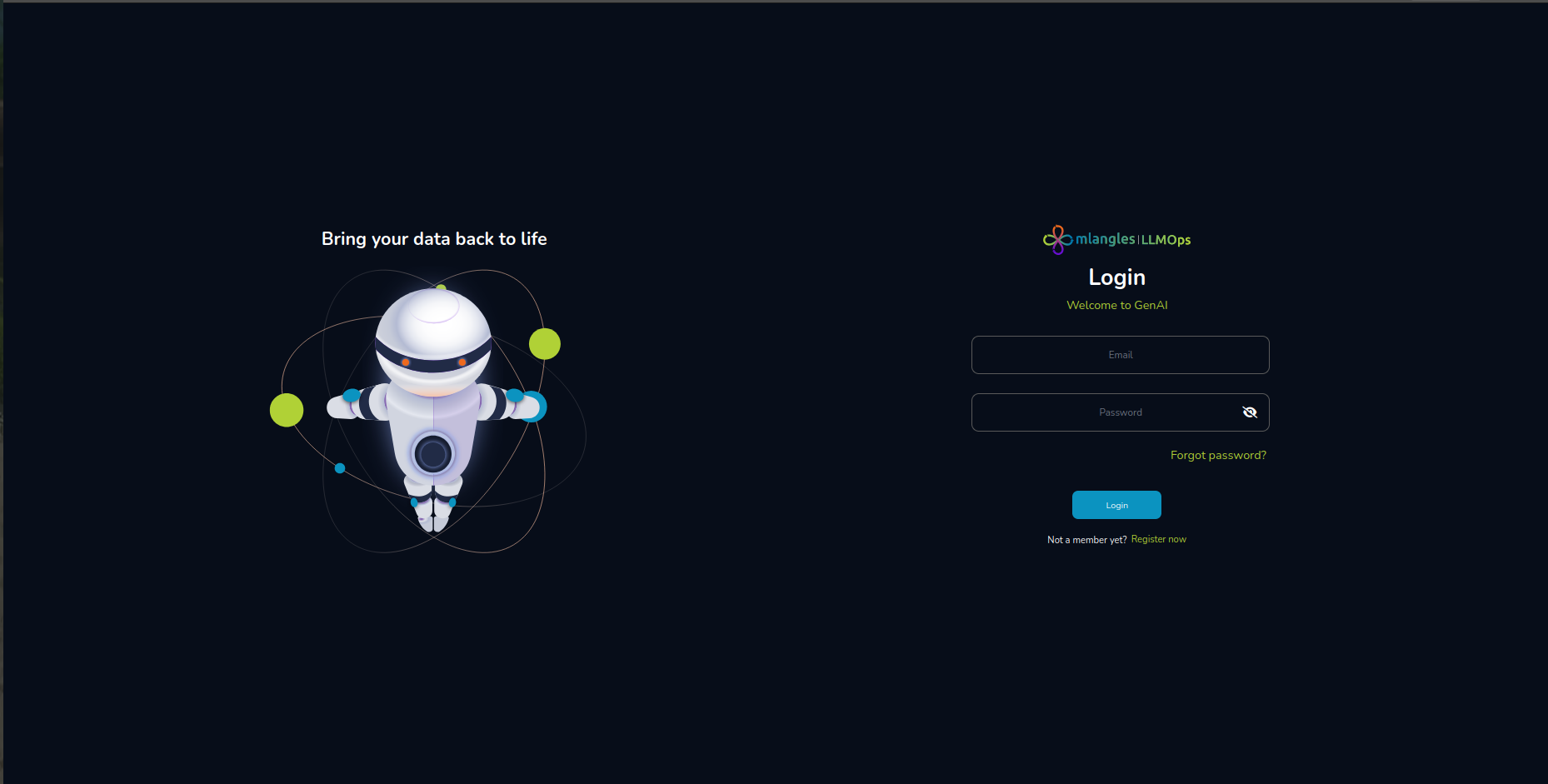
- Navigate to the login page:
https://llmopsdev.mlangles.ai/tenant/login
- Enter your registered Email Address and Password.
- Click Log In to access the platform.
First-Time Login Recommendations
Upon first login:
- Verify your Profile Information in the account settings.
- Update your password if prompted by security policy.
- Familiarize yourself with the Navigation Panel (covered in Section 5).